![The Best Advent Calendars for Adults [Tested and Reviewed]](/wp-content/uploads/2025/10/The-Best-Advent-Calendars-for-Adults_Taste-of-Home_01_YVedit.jpg?resize=72,72)


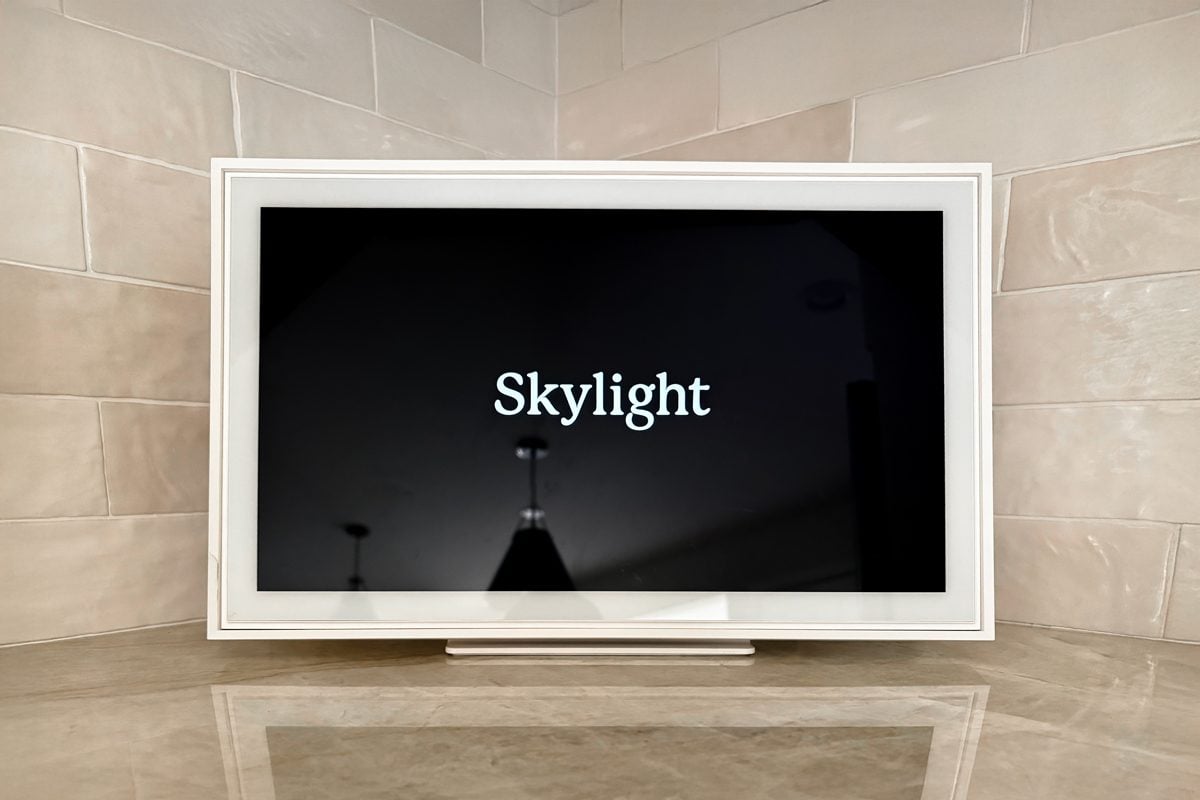
The Skylight calendar organizes everything from your schedule to shopping lists and chore charts. Better still, it's simple and free to use.
Our editors and experts handpick every product we feature. We may earn a commission from your purchases.
Learn more.
I hate technology. Like, really dislike how it’s taken over just about everything. A smart mattress? Not for me. A toothbrush with Bluetooth? Hard pass. So when I first saw the Skylight calendar at Costco, I kept walking. My three paper calendars were just fine, thank you very much.
My system—if you could even call it that—was wildly inefficient. I kept a family calendar hanging in the pantry, tried to copy everything onto the calendar at my desk, scribbled reminders in a planner I kept in the car, and somehow still had to relay it all to my husband. Managing a household with four young children, a dog, and a husband who travels frequently meant plenty of appointments, practices, and commitments slipped through the cracks.
The problem was obvious: my system wasn’t working. But because of my aversion to technology, I had zero interest in switching to Google Calendar, Apple Calendar, or whatever digital scheduling solution my husband was trying to convince me to use.
After a handful of missed appointments and scheduling conflicts, I reluctantly agreed to try the Skylight. It took me less than 10 minutes to decide I might actually like it. Nine months later, I have no idea how I ever survived without it. Here’s my full Skylight calendar review.
Skylight Calendar
What is the Skylight Calendar?
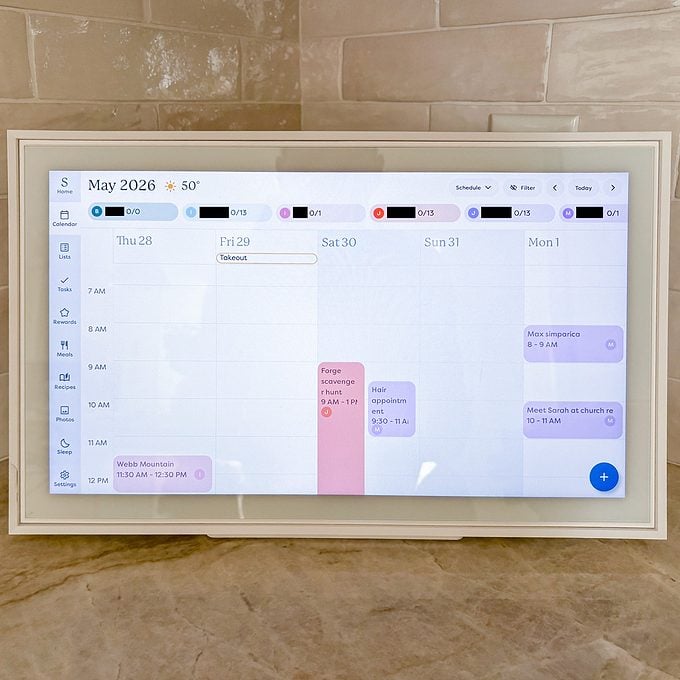
The Skylight Digital Calendar is exactly what it sounds like: a digital family calendar that displays everyone’s schedules, along with lists, chores, and tasks, all in one central place. It features an interactive touchscreen while also having the capability to be updated through the Skylight app. The calendar comes in three sizes, and all of its essential features can be used without a paid subscription.
The subscription, which is known as Calendar Plus, has an annual cost of $79 and allows you to use the Skylight for meal planning and as a child’s reward system. Calendar Plus also gives you access to Magic Import, which will automatically upload lists and schedules to your Skylight and enable a photo screensaver.
How We Tested It
I have been using the 15-inch Skylight calendar with the Plus subscription in my home for nine months.
SetUp
Setting up the Skylight calendar couldn’t be any easier. I took it out of the box, plugged it in and connected it to my Wi-Fi. I then downloaded the app, created an account and sent an invite to my husband so that he could access everything in the calendar.
Skylight allows you to create color-coded profiles for each family member, so I started by assigning everyone their favorite color. Once I had everyone’s profiles set up and color-coded, I started transferring all of our appointments, activities, and plans from my collection of handwritten calendars into the Skylight. You can add events directly on the calendar or through the app, but I found the app much quicker and easier to use when entering information.

Once our calendars were updated, I set up task lists for each of our children. Skylight breaks it down into morning, afternoon and evening tasks. We were able to input everything our children must do every day, from brushing teeth and making beds in the morning to emptying backpacks in the afternoons. There are options to assign the same task to multiple people and repeat a task every day, week or month, so you’re not inputting the same tasks multiple times. Once the children complete each task, they can check it off themselves.
Since I paid for the Calendar Plus subscription, I also have access to a chore chart and reward system for each child. Each chore on the list can be assigned a certain number of stars. The children collect stars and then cash them in for a reward of their choice. My husband and I were able to select the star value for each chore and reward. We let our children choose their own rewards, so each child is working towards something they want.
First Impressions
As someone who generally dislikes technology, I was immediately smitten with the Skylight. The color-coded system makes it easy to see who needs to be where and when with a quick glance, and my children were genuinely excited to check off their daily tasks and work toward their chosen rewards. It is so easy to use and incredibly convenient. Plus, it was a sleek addition to our kitchen counter.
Cleaning and Care
To my delight, there isn’t much maintenance involved. My Skylight lives on my kitchen counter in a spot where I don’t prepare food, so I haven’t had to deal with splatters or gunk. I just use a microfiber cloth to wipe away dust as needed.
Longterm Use
As mentioned, I’ve been using the Skylight with Calendar Plus for nine months, and I truly don’t know how I ever functioned without it! Admittedly, there are features, including those that come with Calendar Plus, that I don’t use. I don’t store recipes, upload photos or sync other calendars.
That said, the features I do use are worth their weight in gold. Especially the chore chart and reward system. Before Skylight, our mornings were pure chaos. I couldn’t keep track of who had made their bed and brushed their teeth before getting out the door. When they got home, I found myself repeatedly reminding them to empty backpacks and put away lunchboxes. It was exhausting. Now, if they don’t complete each of their daily tasks, they don’t get their star at the end of the day. That means it takes longer to earn things like weekend screen time or a special trip to get donuts—and they know it.

I was concerned that the reward system might be a novelty that my children would grow tired of. On the contrary, it has been the best thing for our family. Recently, Skylight completed an update that added a new chore column. This allows us to add extra tasks that anyone can complete in exchange for stars. My kids rush to snag whatever bonus chores we add to the list, including laundry and cleaning the inside of the car.
The grocery list, which is available without Calendar Plus, is also hugely helpful. My husband and I both add to it throughout the week, and when I go to the store, I know exactly what I need to get. I check off each item as I put it in my cart. Once checked off, that item is automatically removed from the list.
I have not experienced any glitches with the calendar or app. It has worked smoothly since day one, and I expect it will continue to function as intended. The only thing to keep in mind is that it must be plugged into an electrical outlet at all times. If you lose power, the calendar will be down as well since there is no battery backup. That said, you can rely on the app until the power comes back.
Pros
- Simple to use
- Plenty of free standard features
- Supports unlimited user profiles
- Subscription is not required
- Color coding makes it easy to see everyone’s schedule
- Can update calendar and lists from the device or the app
- The app is easy to navigate
Cons
- Pricey
- Must be plugged into an electrical outlet—no battery backup if power goes out
Skylight Calendar Features

The Skylight calendar boasts a ton of free, standard features to organize your life.
- Tasks Manager: This interactive checklist helps each family member manage their daily routines and chores.
- Color Coding: Assign each family member their own color. This makes it easy to see who needs to be where and when at a glance.
- Mobile App: In addition to having the ability to update your calendar and lists on the Skylight itself, you can also manage and access everything on the Skylight app.
- Custom Lists: Grocery lists, to-do lists, and any other list you can think of can be accessed and managed directly on the device or via the app.
- Customized Views: Easily toggle between day, week, month and schedule views.
- Weather: The Skylight displays the weather and current temperature based on your location.
- Sleep Mode: You can easily schedule your Skylight screen to go to sleep at the same time each night and wake up at the same time each morning.
- Parental Lock: Prevent editing, adding, or deleting your events and chores.
- Share Access: Through the app, you can invite your partner or other family members to access your Calendar.
- Device Linking: More than one Skylight? You can connect multiple devices across rooms (or even households) so they share the same information.
- Software Updates: New features automatically download to your device without interruption.
If you opt for Calendar Plus, you’ll have access to all of the features listed above as well as the following:
- Rewards: Establish a routine and motivate your children to complete tasks with star-powered incentives. Parents choose how many stars each chore is worth and how many stars kids have to redeem for each reward.
- Meal Planning: Organize your breakfast, lunch, dinner and snack plans in your calendar. You can also upload or manually input your favorite recipes or create new ones with Smart technology.
- Photo Screensaver: Display your favorite photographs when your calendar isn’t in use.
- Magic Import: Automatically upload photos of lists and flyers to add them to your Skylight.
Product Comparison: Skylight vs. Cozyla
There are Skylight calendar alternatives out there, including the Cozyla Digital Calendar. There are plenty of similarities between the two brands. Both calendars allow you to keep your schedules, lists and tasks in one place without a subscription. They both sync up with Apple, Google, Outlook and Yahoo calendars, feature an easy-to-use app and come in multiple sizes. But the similarities end there.
The Cozyla calendar offers a family voice assistant dubbed Cozyla AI. This feature is designed to edit your calendar as needed and create personalized recommendations for your family. It also comes with access to the Google Play Store and hundreds of apps. It’s also offered in five sizes, with prices ranging from $350 for a 15.6-inch calendar to $3,000 for a 55-inch mobile calendar. It also supports up to eight user profiles, whereas the Skylight supports unlimited user profiles.
Both digital calendars are sure to keep your day-to-day running smoothly. But if you’re looking for something that’s effective and easy to use without the addition of apps and AI, the Skylight is our top pick.
Final Verdict
At $300 for the 15-inch calendar, the Skylight is a pricey purchase. But it’s worth it! After nine months of use, my life feels more organized and my house feels less chaotic. Speaking of houses, the Skylight calendar is the ultimate housewarming gift!
Where to Buy
Skylight Calendar
The price of the Skylight depends on which size you get. A 10-inch Skylight costs $170. The 15-inch calendar is $300 and the 27-inch Skylight Calendar Max is $630. You can find all three sizes on the Skylight website. It’s also available on Amazon as well as retailers like Walmart and Target.
FAQ

Does the Skylight calendar require a subscription?
No. You can use the Skylight and all of its essential features without a subscription.
Is the Skylight calendar worth it?
That’s a very enthusiastic YES!
How much is the Skylight calendar subscription?
The Skylight calendar subscription costs $79 annually.
How do you set up the Skylight calendar?
After unboxing the Skylight, plug it in, connect to Wi-Fi and download the Skylight calendar app. From there, you’ll create an account and set up your family profiles.
Does Skylight sync with Apple Calendar?
Yes. It syncs with Apple, Google, Outlook, Yahoo and Cozi calendars.
How do you change the time on the Skylight calendar?
Under settings, you have the option to change your time zone.